If you are learning HTML for the first time, understanding the structure of an HTML document is one of the most important steps you can take.
Every HTML webpage follows a basic structure that helps web browsers understand and display the content correctly. Once you understand this structure, creating your own webpages becomes much easier.
Table of Contents
In the previous HTML for Beginners lesson at BeginnerCodeMastery, we explained what HTML is and how HTML is used to structure webpages. In this lesson, we will take the next step and learn how a complete HTML document is organized.
By the end of this lesson, you will understand the purpose of <!DOCTYPE html>, <html>, <head>, <title>, and <body>.
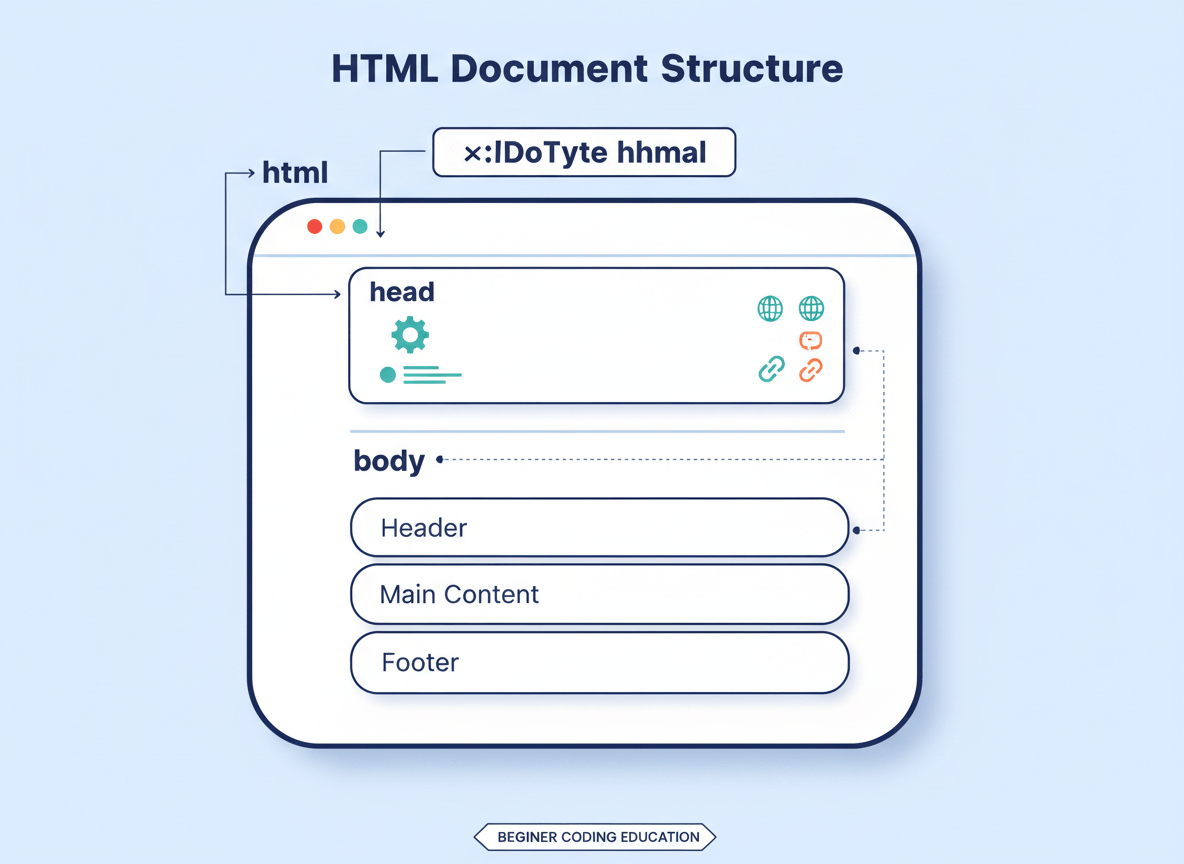
What Is an HTML Document?
An HTML document is a file that contains HTML code used to create the structure of a webpage.
HTML files usually use the .html file extension.
For example:
index.html
A basic HTML document looks like this:
<html lang="en"><head> <meta charset="UTF-8"> <meta name="viewport" content="width=device-width, initial-scale=1.0"> <title>My First Website</title></head><body> <h1>Welcome to My Website</h1> <p>This is my first HTML webpage.</p></body></html>
At first, this code may look complicated if you are completely new to HTML.
Don’t worry.
We will break down every important part step by step.
Understanding <!DOCTYPE html>
The first line of a modern HTML document is usually:
This is called the DOCTYPE declaration.
It tells the browser which version and type of HTML the document is using.
For modern websites, <!DOCTYPE html> tells the browser that the document uses HTML5.
It is important to understand that <!DOCTYPE html> is not an HTML element in the same way that <p> or <h1> is.
Instead, it is a declaration that appears at the beginning of the document.
A typical HTML page starts with:
This helps the browser render the page using modern standards.
Why Is DOCTYPE Important?
Without the correct DOCTYPE declaration, browsers may use an older compatibility mode when rendering a webpage.
For beginners, the most important thing to remember is simple:
Start your HTML documents with
<!DOCTYPE html>.
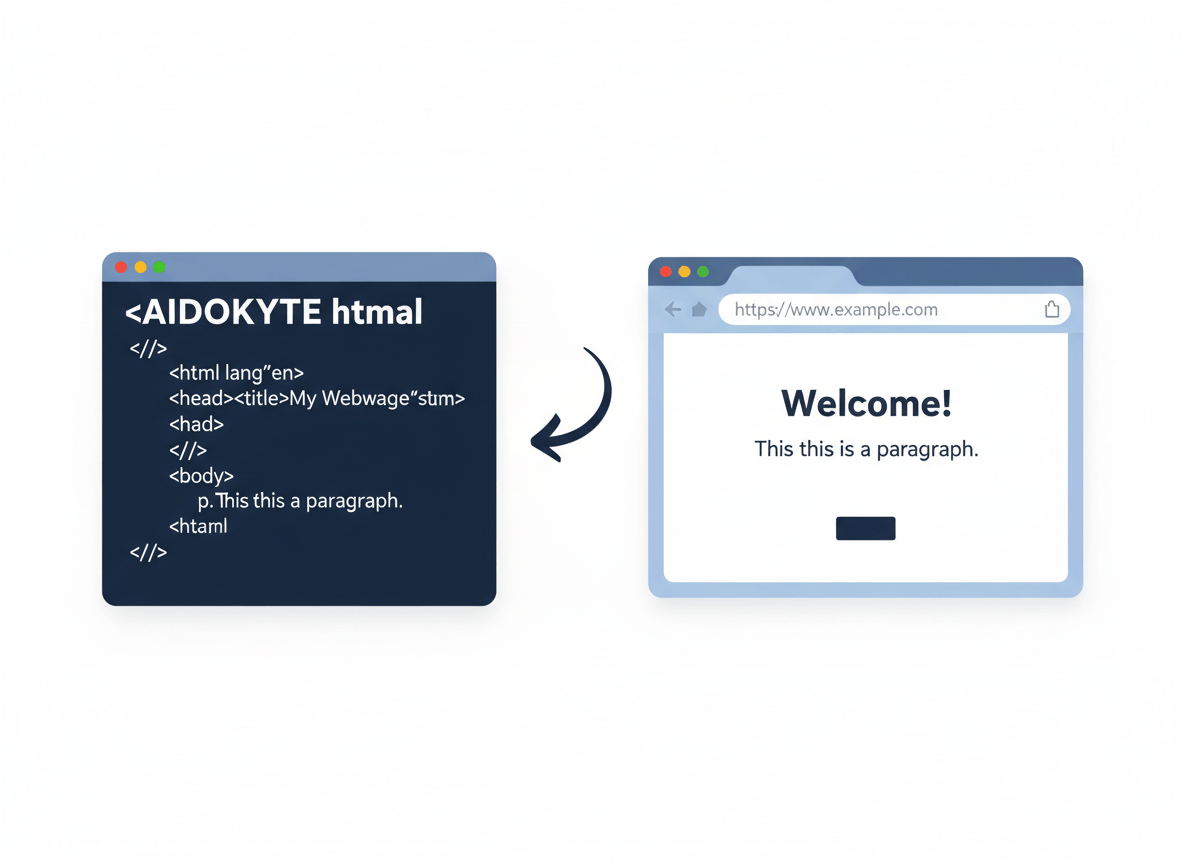
The <html> Element
After the DOCTYPE declaration, you will usually see the <html> element:
<html lang="en">
The <html> element is the root element of the HTML document.
Almost everything else in your HTML page is placed inside it.
For example:
<html lang="en"> <!-- Your HTML document goes here --></html>
The opening <html> tag marks the beginning of the HTML document, while the closing </html> tag marks its end.
What Does lang="en" Mean?
You may have noticed this:
<html lang="en">
The lang attribute tells browsers and assistive technologies which language the webpage is written in.
In this example:
lang="en"
means that the page is written in English.
For an English website such as BeginnerCodeMastery, using:
<html lang="en">
is a good practice.
If a page were written in another language, the value could be different.
For example:
<html lang="es">
would indicate Spanish.
The <head> Element
Inside the <html> element, you will find two major sections:
<head>
and:
<body>
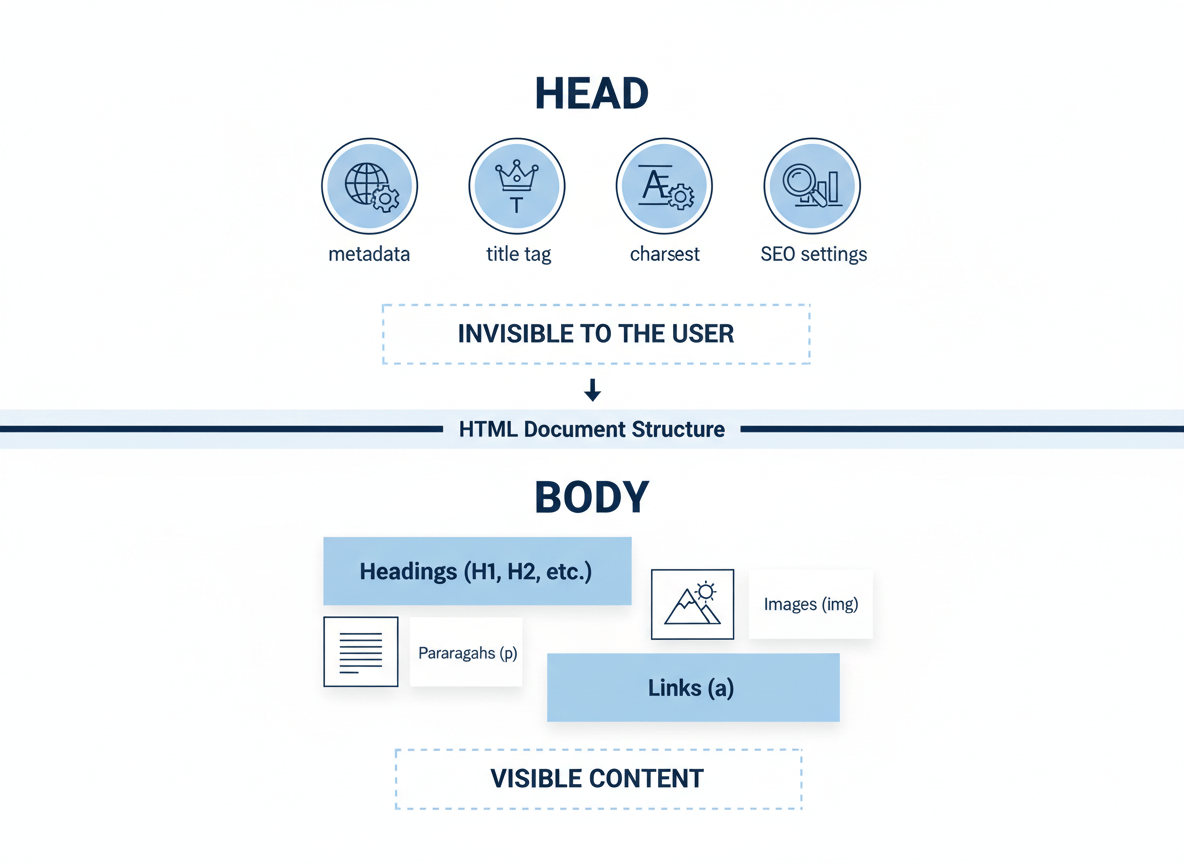
The <head> contains information about the webpage that is not normally displayed as the main content of the page.
A simple example is:
<head> <title>My First Website</title></head>
The <head> section can contain important information such as:
- Page title
- Character encoding
- Viewport settings
- SEO-related metadata
- Stylesheets
- Other information used by browsers and search engines
Understanding the <head> section is especially important when you eventually learn about SEO and website optimization.
The <title> Element
One of the most important elements inside the <head> is:
<title>
For example:
<title>Learn HTML for Beginners</title>
The title is used to describe the webpage.
It can appear in places such as the browser tab and can also be used by search engines when determining how a page is presented in search results.
For example:
<head> <title>HTML for Beginners - BeginnerCodeMastery</title></head>
This provides both users and search engines with a clear description of the page.
Why Is the Title Important?
A good page title should clearly describe the content of the page.
Instead of:
<title>Page 1</title>
a more descriptive title would be:
<title>HTML Document Structure for Beginners</title>
The second example gives users a much better idea of what they will find on the page.
The <meta charset="UTF-8"> Element
Another common element inside the <head> is:
<meta charset="UTF-8">
This defines the character encoding used by the webpage.
UTF-8 supports a very large range of characters and is commonly used for modern websites.
For example, it allows webpages to correctly display many different languages and special characters.
A typical HTML document includes:
<head> <meta charset="UTF-8"> <title>My First Website</title></head>
For most beginner projects, you should include this declaration.
The Viewport Meta Tag
You will also commonly see:
<meta name="viewport" content="width=device-width, initial-scale=1.0">
This is important for responsive webpages.
It helps the browser control how the webpage is displayed on different screen sizes, including:
- Desktop computers
- Laptops
- Tablets
- Smartphones
Without proper viewport settings, a webpage may not behave as expected on mobile devices.
For modern websites, it is a good practice to include:
<meta name="viewport" content="width=device-width, initial-scale=1.0">
The <body> Element
The <body> element contains the visible content of the webpage.
For example:
<body> <h1>Welcome to My Website</h1> <p>This is my first webpage.</p></body>
The content inside the <body> is what users will generally see when they visit the webpage.
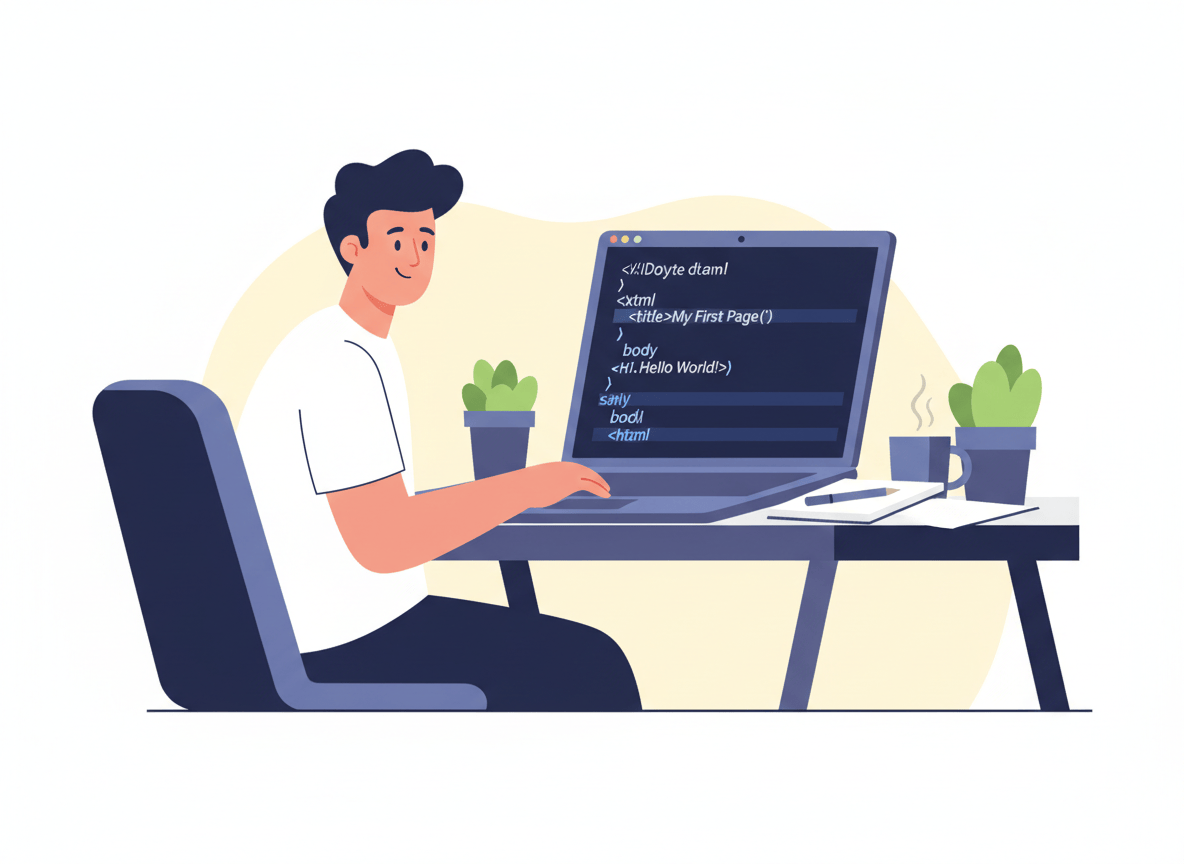
You can place many different HTML elements inside the body, including:
- Headings
- Paragraphs
- Images
- Links
- Lists
- Buttons
- Forms
- Tables
- Sections
- Articles
- Navigation menus
For example:
<body> <h1>Welcome to BeginnerCodeMastery</h1> <p>Learn HTML step by step.</p> <a href="/html-for-beginners/">Start Learning HTML</a></body>
<head> vs <body>
One of the easiest ways to understand HTML document structure is to remember the difference between the <head> and <body>.
<head>
Contains information about the webpage.
Examples include:
<title><meta>- Stylesheet references
- SEO metadata
<body>
Contains the main visible content.
Examples include:
<h1><p><img><a><button><form>
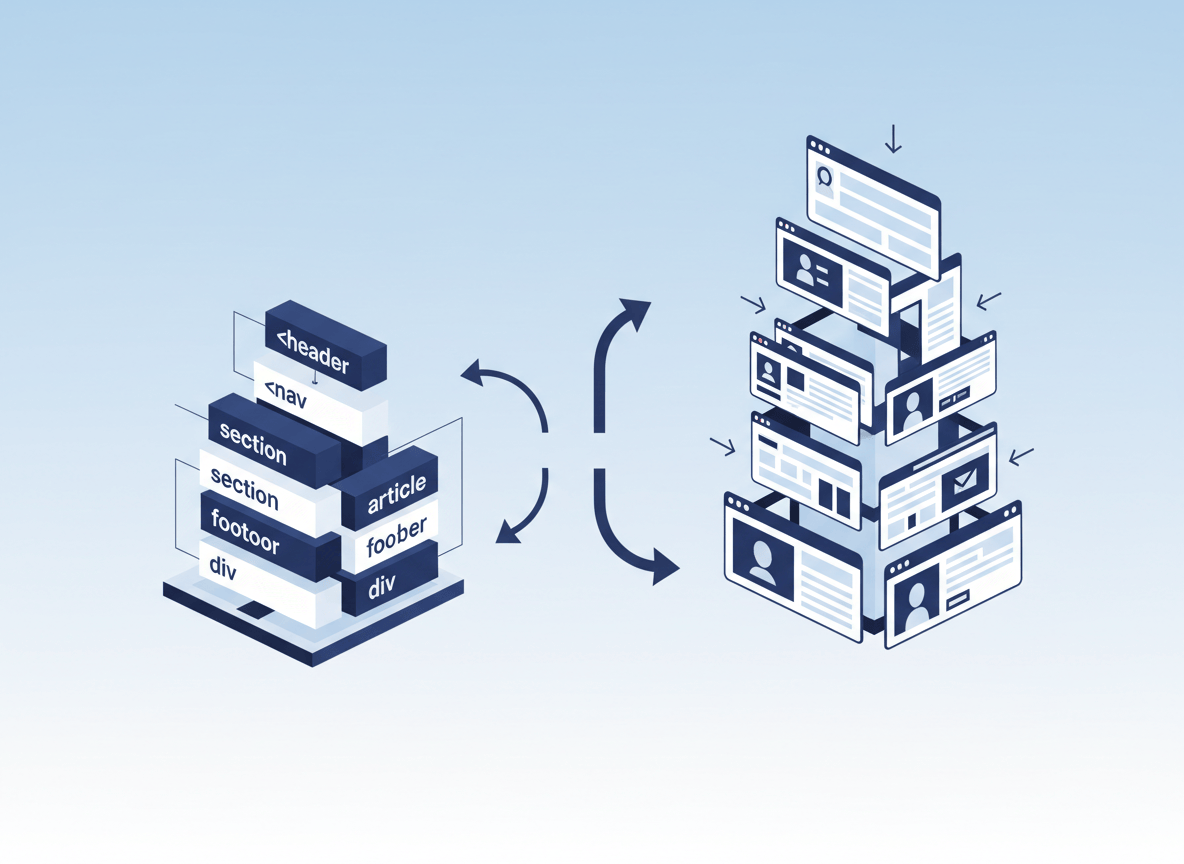
You can think of the structure like this:
HTML Document│├── HEAD│ ├── Title│ ├── Meta Information│ └── Other Page Information│└── BODY ├── Headings ├── Paragraphs ├── Images ├── Links └── Other Visible Content
Putting Everything Together
Now let’s combine everything we have learned so far.
<html lang="en"><head> <meta charset="UTF-8"> <meta name="viewport" content="width=device-width, initial-scale=1.0"> <title>HTML for Beginners | BeginnerCodeMastery</title></head><body> <h1>Learn HTML for Beginners</h1> <p> Welcome to BeginnerCodeMastery. Start learning HTML step by step. </p></body></html>
This is a complete basic HTML document.
Let’s summarize what each part does.
| Element | Purpose |
|---|---|
<!DOCTYPE html> | Declares the HTML document type |
<html> | Root element of the webpage |
lang="en" | Defines the document language |
<head> | Contains page information and metadata |
<meta charset="UTF-8"> | Defines character encoding |
<meta name="viewport"> | Helps with responsive display |
<title> | Defines the page title |
<body> | Contains visible webpage content |
<h1> | Creates a main heading |
<p> | Creates a paragraph |
Creating Your First HTML Page
Now it is time to create your own HTML file.
Step 1: Create a File
Create a new file called:
index.html
Step 2: Add the Basic Structure
Copy the following code into the file:
<html lang="en"><head> <meta charset="UTF-8"> <meta name="viewport" content="width=device-width, initial-scale=1.0"> <title>My First Website</title></head><body> <h1>Hello, World!</h1> <p>I am learning HTML with BeginnerCodeMastery.</p></body></html>
Step 3: Save the File
Save your file as:
index.html
Make sure the file extension is .html.
Step 4: Open It in Your Browser
Double-click the HTML file or open it with a web browser.
You should see:
Hello, World!
and underneath it:
I am learning HTML with BeginnerCodeMastery.
Congratulations! You have created your first complete HTML webpage.
Common Beginner Mistakes
When learning HTML, beginners often make a few common mistakes.
Forgetting Closing Tags
For example:
<p>Hello World
For elements that require closing tags, write:
<p>Hello World</p>
Putting Content in the Wrong Section
Remember that visible webpage content generally belongs inside the <body>.
For example:
<body> <h1>My Website</h1></body>
Information such as the page title belongs inside <head>:
<head> <title>My Website</title></head>
Forgetting DOCTYPE
Start modern HTML documents with:
Incorrect Nesting
HTML elements should be properly nested.
Correct:
<p>This is <strong>important</strong> text.</p>
Incorrect:
<p>This is <strong>important</p></strong>
Proper nesting makes your HTML easier for browsers and developers to understand.
Why HTML Structure Matters
A well-structured HTML document is easier to:
- Read
- Maintain
- Debug
- Optimize
- Make accessible
- Improve for search engines
- Expand into a larger website
As your websites become more advanced, proper structure becomes increasingly important.
You may eventually work with CSS frameworks, JavaScript libraries, and modern web development frameworks, but understanding the basic HTML document structure will remain valuable.
HTML Document Structure and SEO
HTML structure can also contribute to a better search engine experience.
Elements such as:
<title>
and:
<meta name="description">
provide important information about a webpage.
Semantic elements such as:
<header><nav><main><section><article><footer>
can also help communicate the purpose and organization of content.
SEO is a much larger topic, so you do not need to master it at this stage.
For now, focus on writing clean, meaningful, and well-structured HTML.
You will learn more about HTML and SEO later in the BeginnerCodeMastery course.
Quick Review
Before moving to the next lesson, make sure you understand these concepts:
- HTML documents use the
.htmlfile extension. <!DOCTYPE html>declares the document type.<html>is the root element.lang="en"identifies the page language.<head>contains information about the webpage.<title>defines the page title.<meta charset="UTF-8">defines character encoding.- The viewport meta tag helps webpages work correctly across different screen sizes.
<body>contains the visible content of the webpage.
If you understand these concepts, you are ready to start working with individual HTML elements.
What’s Next?
Now that you understand the basic structure of an HTML document, it is time to learn how to create and organize content inside the <body>.
In the next lesson, you will learn about HTML headings and paragraphs.
You will discover:
- What
<h1>through<h6>mean - How HTML headings are structured
- When to use each heading level
- How to create paragraphs with
<p> - How headings affect the organization of a webpage
- Common heading mistakes beginners should avoid
- How to create a properly structured content page
Next Lesson: HTML Headings and Paragraphs — A Beginner’s Guide